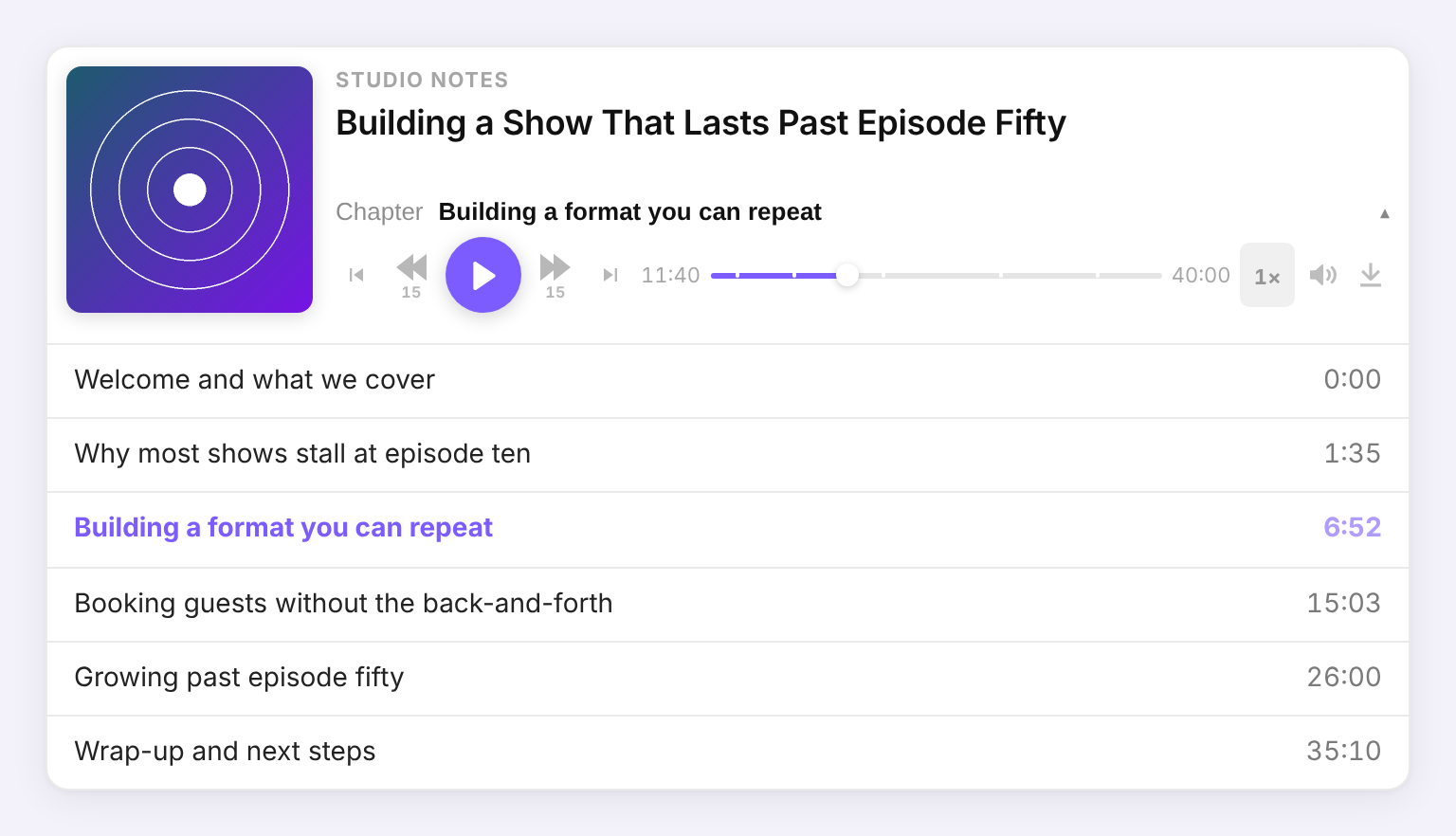
Today we're making the Podpage audio player the default for every Podpage site. If your site was showing your podcast host's embedded player, it now shows ours — and we think your listeners will notice the difference right away.
When we gave the player a major redesign in May, it was already a big step up. Since then we've kept building, with one goal: make your episode pages a better place to listen. Here's what your listeners get.
Why we made it the default
Host players are built to work the same way on every website, which means they can't know anything about yours. They run inside an iframe — a separate page embedded in your page — so they can't match your colors, can't connect to your show notes or transcript, and can't use anything else on the page. The Podpage player is built together with your site, so it can do all of that.
It also keeps your pages lighter. There's no separate embedded page to load for each player, and the player's code only loads on pages that actually have an episode on them.
What your listeners get
Chapters they can jump between
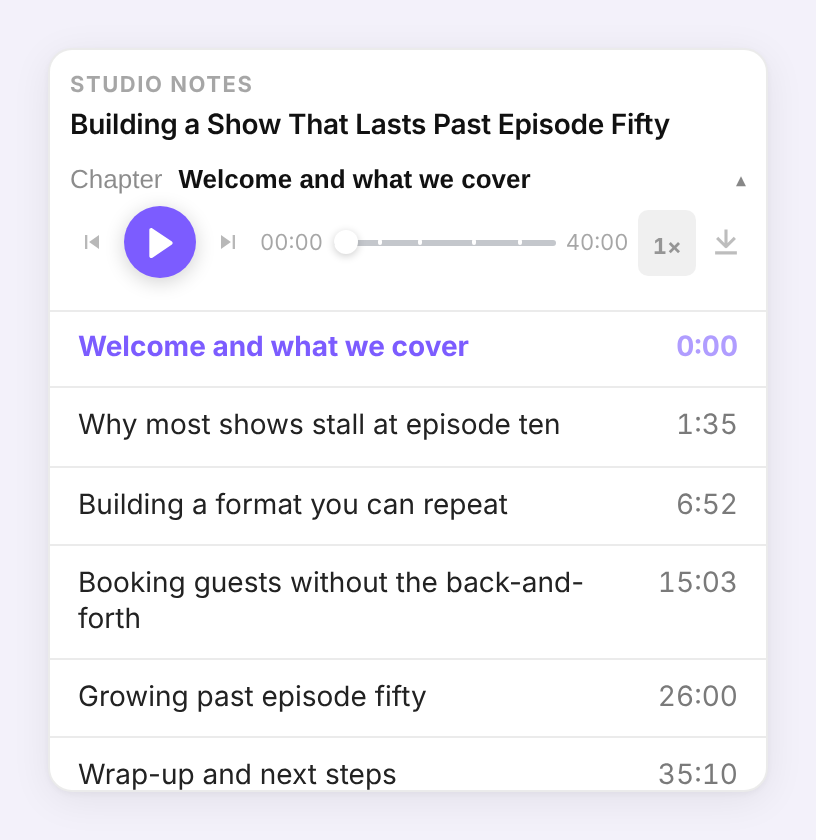
If your episodes have chapters, listeners now see the current chapter right in the player. Tap it to open the full list, or use the previous and next chapter buttons beside play. The progress bar is marked at each chapter, and it works on video episodes too. Chapters come straight from your podcast feed, so there's nothing to set up. Chapter navigation is available on Pro and above.
If a chapter has its own image, the player shows that image in place of the episode artwork while the chapter plays, and the chapter list shows a small thumbnail beside it. If a chapter has a link — a page about the story, a sponsor, an events calendar — a Chapter link appears next to its name and opens in a new tab. Chapters that don't have a title are numbered, so Chapter 1, Chapter 2 and so on.
Timestamps that actually play
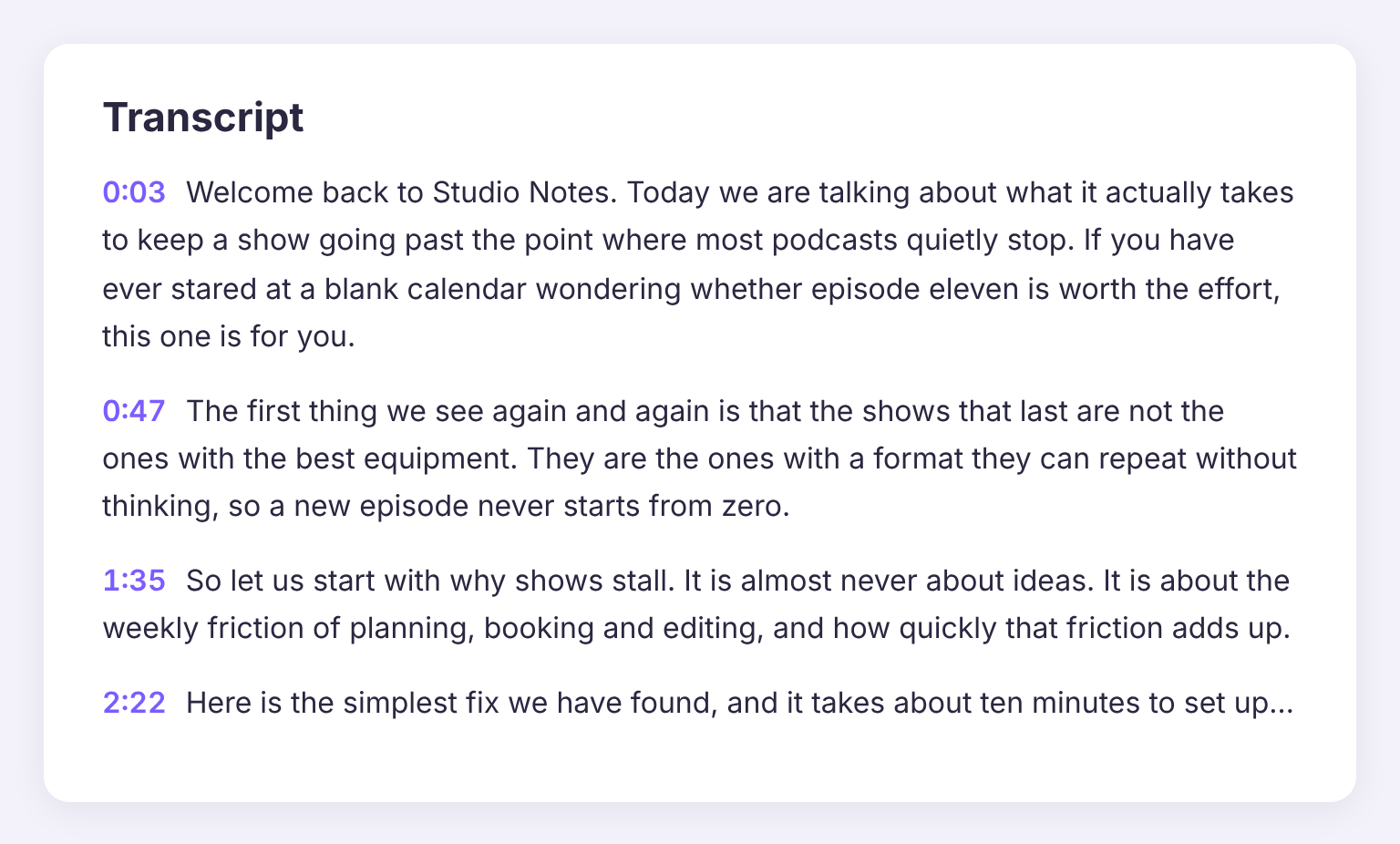
When your show notes mention a moment — “at 12:30 we dive into the story” — that timestamp is a link that jumps the player to that spot. Now the same goes for your transcript. Every timestamp in an episode transcript becomes a link, and transcripts that arrive as raw caption files are tidied into readable paragraphs, each starting with its timestamp. Clickable transcript timestamps are available on Pro and above.
It picks up where they left off
Listeners who come back to an episode start from where they stopped, on the same device. No more scrubbing around to find their place.
Lock-screen and headphone controls
On a phone, the episode title and artwork show on the lock screen, with play and pause, skip back and forward, and previous and next chapter — the same controls listeners are used to from a podcast app.
Keyboard shortcuts
On a computer, press k to play or pause, j and l to skip back or forward 15 seconds, m to mute, and [ and ] to move between chapters.
It looks like your show
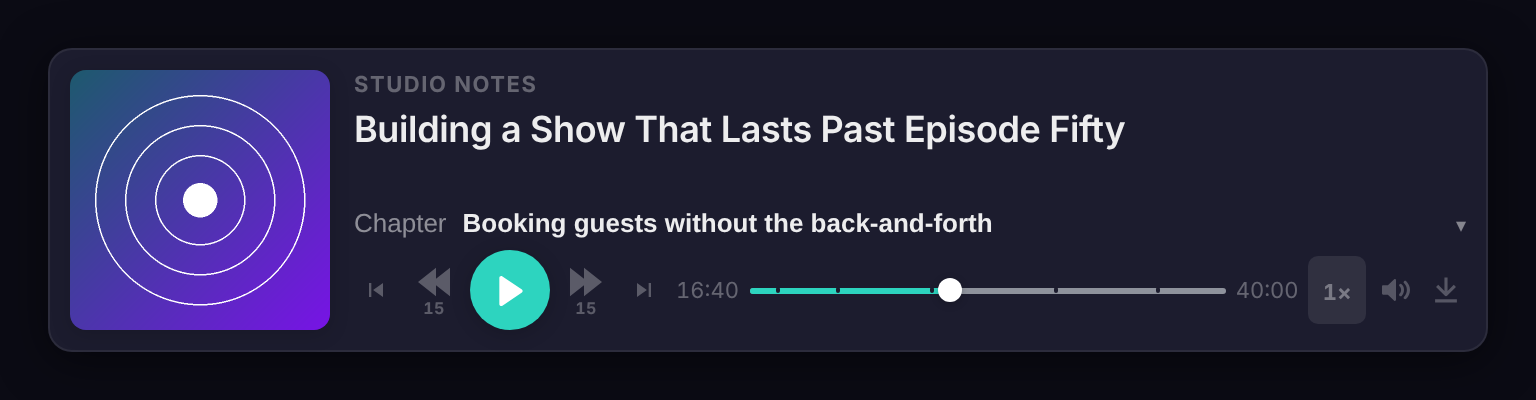
The play button and progress bar use your podcast's primary color, and dark mode is fully supported. On a phone, the player folds down to fit the screen and the chapter list scrolls.
An optional download button
If you want listeners to be able to save an episode, you can add a download button to the player from Settings → Media Player.
Your plays still count
The audio still comes from your podcast host's servers — we just play it on your site. And if your feed uses a stats service such as Podtrac, OP3 or Chartable, we keep it in the audio link, so plays on your website still go through those services too.
Want your host's player back?
It's your site and your call. To switch, go to Settings → Media Player and turn off Use Podpage's Audio Player. Your episode pages will go back to showing your host's player. Keep in mind that the features above — chapters, clickable timestamps, resume, lock-screen controls and shortcuts — only work with the Podpage player.
Already on your site
There's nothing you need to do. Open any episode page on your Podpage site and you'll see the new player. We'd love to hear what you and your listeners think — reply to any Podpage email or send us a note and tell us what you'd like to see next.