This guide connects a domain you own, like www.yourshow.com, to your Podpage website. You'll add the domain in Podpage, copy two settings into the website where you bought the domain, and then verify.
Time needed: about 10 minutes, plus a short wait while the change spreads across the internet.
Before you start
- A paid plan. Custom domains aren't available during the free trial. Each website that uses its own domain needs its own subscription.
- A domain name. Podpage doesn't sell domains. You can buy one from any registrar, such as Namecheap, Hover or GoDaddy. See Can I buy a domain from Podpage?
- Your registrar login, so you can change the domain's DNS settings.
Step 1Add your domain in Podpage
- Go to Settings → Custom Domain.
- In Custom domain, enter your domain including
www.— for examplewww.yourshow.com. - Click Save.
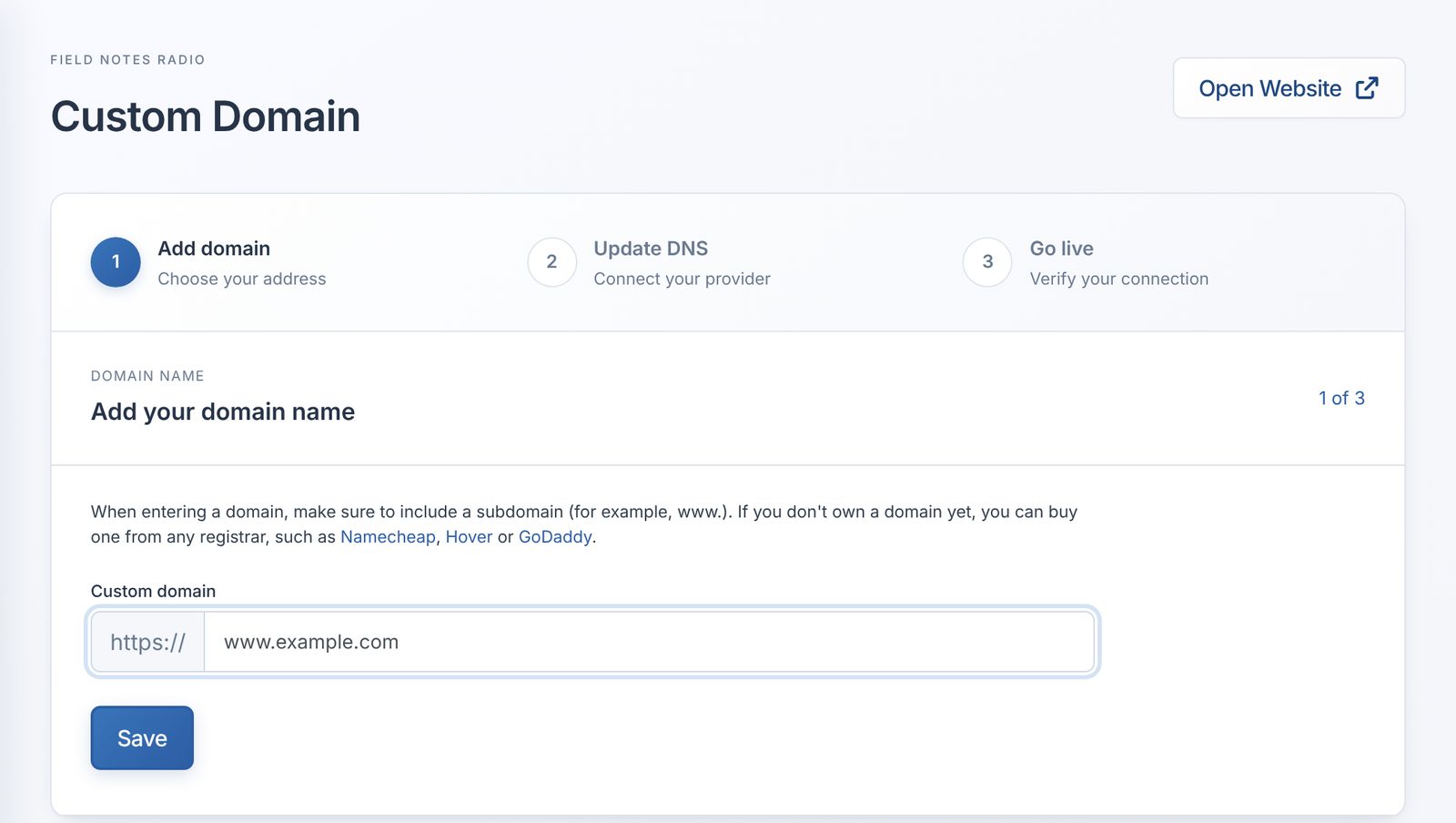
Why www? Podpage connects through a subdomain such as www. If you type yourshow.com on its own, you'll see "Please use a subdomain (www.)". Don't worry: the settings in step 2 make yourshow.com work too.
Step 2Update your DNS settings
After you save, Podpage shows the exact changes to make for your domain. Keep this page open in one tab, and log into your registrar in another.
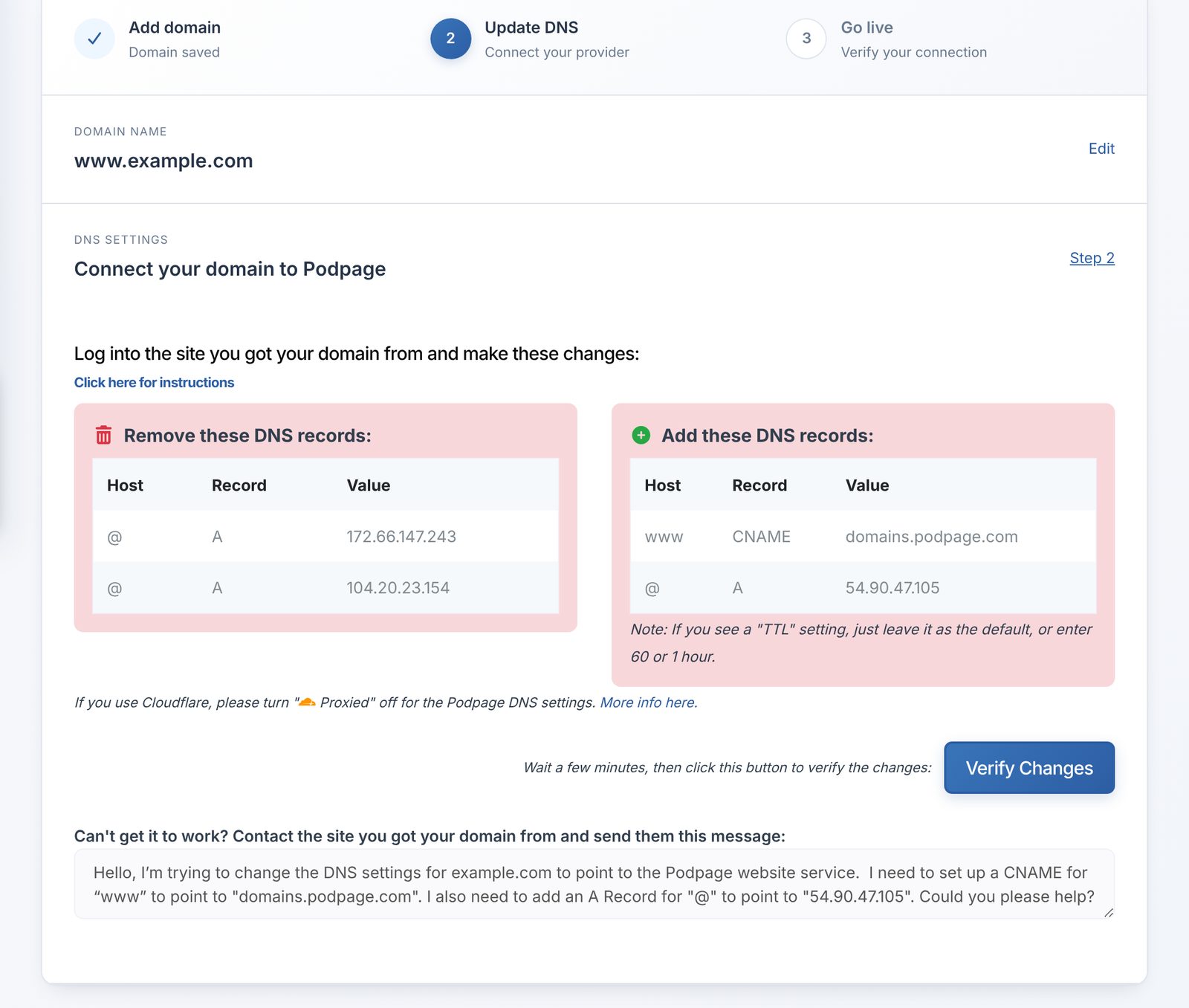
- Find your domain's DNS settings at your registrar. They may be called DNS, Manage DNS, Advanced DNS or Host Records.
- Delete each record listed under Remove these DNS records. These point your domain somewhere else, such as an old website, and will stop Podpage from working.
- Add each record listed under Add these DNS records. For a www domain these are:
- CNAME with host
wwwand valuedomains.podpage.com - A with host
@and value54.90.47.105
- CNAME with host
- If your registrar asks for a TTL, leave the default.
- Save your changes at the registrar.
Using Cloudflare? Set both Podpage records to DNS only (grey cloud), not Proxied.
Step-by-step help for popular registrars:
Step 3Verify the connection
- Wait a few minutes, then go back to Podpage and click Verify Changes.
- Once your settings are right, you'll see Your domain is getting ready. It can take a few hours for the change to reach every network, and occasionally up to 48 hours.
- When it's done, the page says Your domain is connected. Visit your domain to see your site.
You don't need to set up HTTPS. Podpage gets a security certificate for your domain automatically, usually within an hour of the domain connecting. See SSL certificates for your Podpage.
Step 4Update your links
- Change your show's website link at your podcast host to the new domain, so podcast apps show it. See Updating your official website link on podcast players.
- Update the link in your social profiles and email signature.
Troubleshooting
- Still not working after a few hours? Check that every record under Remove these DNS records is gone, and that domain forwarding is turned off at your registrar.
- Works on one device but not another? Give it more time. Some networks take longer to pick up the change.
- Stuck? Under Can't get it to work?, Podpage writes a message you can send to your registrar's support team. They can make the change for you.
- Want a subdomain instead, like
podcast.yourshow.com? Enter that in step 1. You'll only need one CNAME record, with hostpodcastand valuedomains.podpage.com. - Have more than one domain? See Pointing more than one domain at your Podpage.
Need a hand? Use the help button in your dashboard to chat with us.