This guide takes you from your podcast's RSS feed to a live website. Podpage builds the site for you from your feed, so most of the work is choosing what you like.
Time needed: about 15 minutes.
You'll need: your podcast's RSS feed URL (your podcast host shows it in your show settings), or your YouTube channel if you publish video only.
Step 1Start your preview
- Go to podpage.com/preview.
- Search for your podcast by name, or click Enter Podcast Feed and paste your RSS feed URL.
- Enter the email address we should send your Podpage link to.
- Click Create Website →.
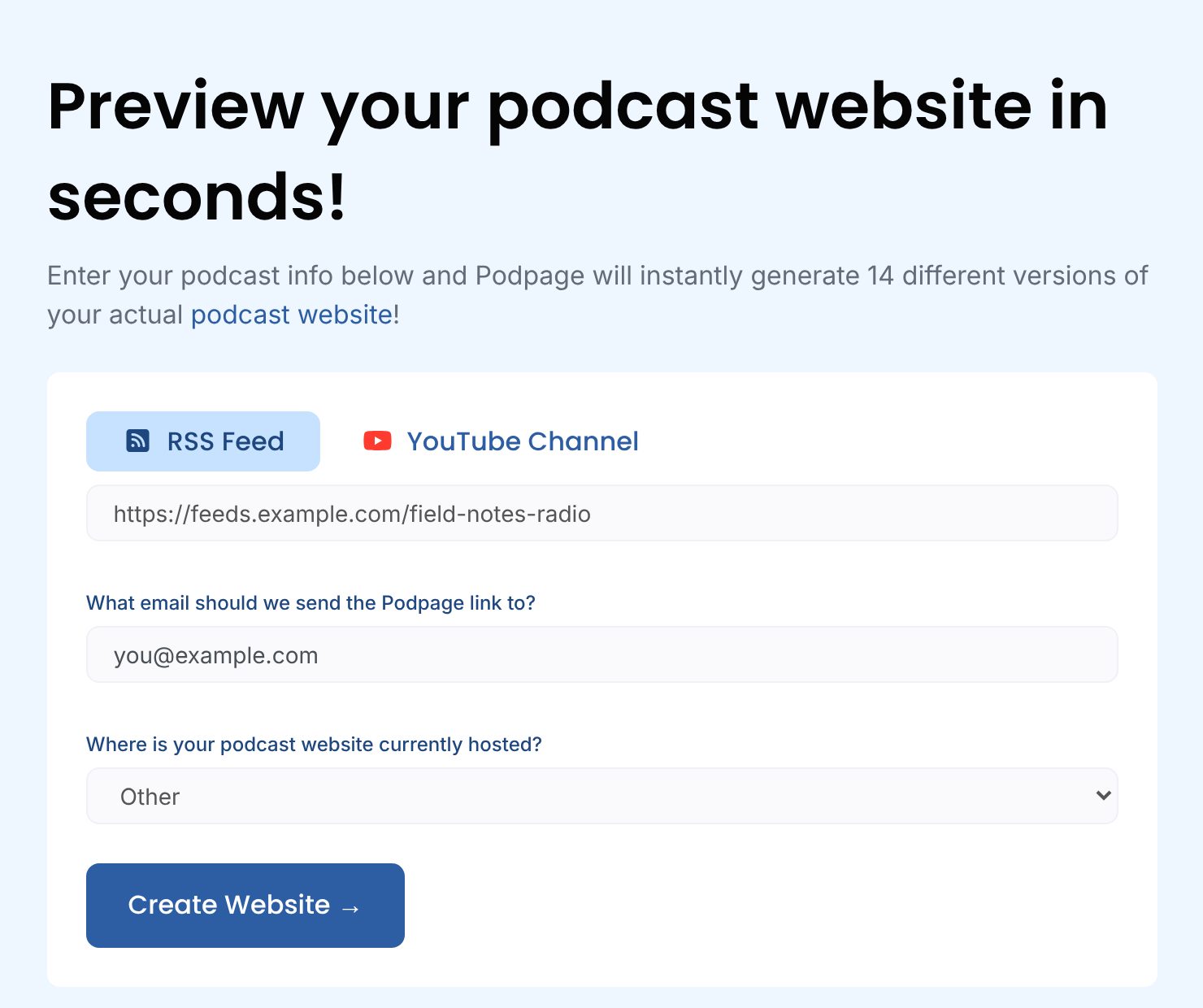
Only publish video? Choose YouTube Channel instead, then pick the playlist that holds your episodes so Shorts and other videos stay off your site. No podcast yet? Click No feed, yet? Click here. to build a site from scratch.
Step 2Pick a design
Podpage imports your episodes and shows your podcast in several designs side by side.
- Scroll through the designs. Click Preview to see one full size, and use the sun and moon icons to switch between light and dark versions.
- Click Choose on the one you like best.
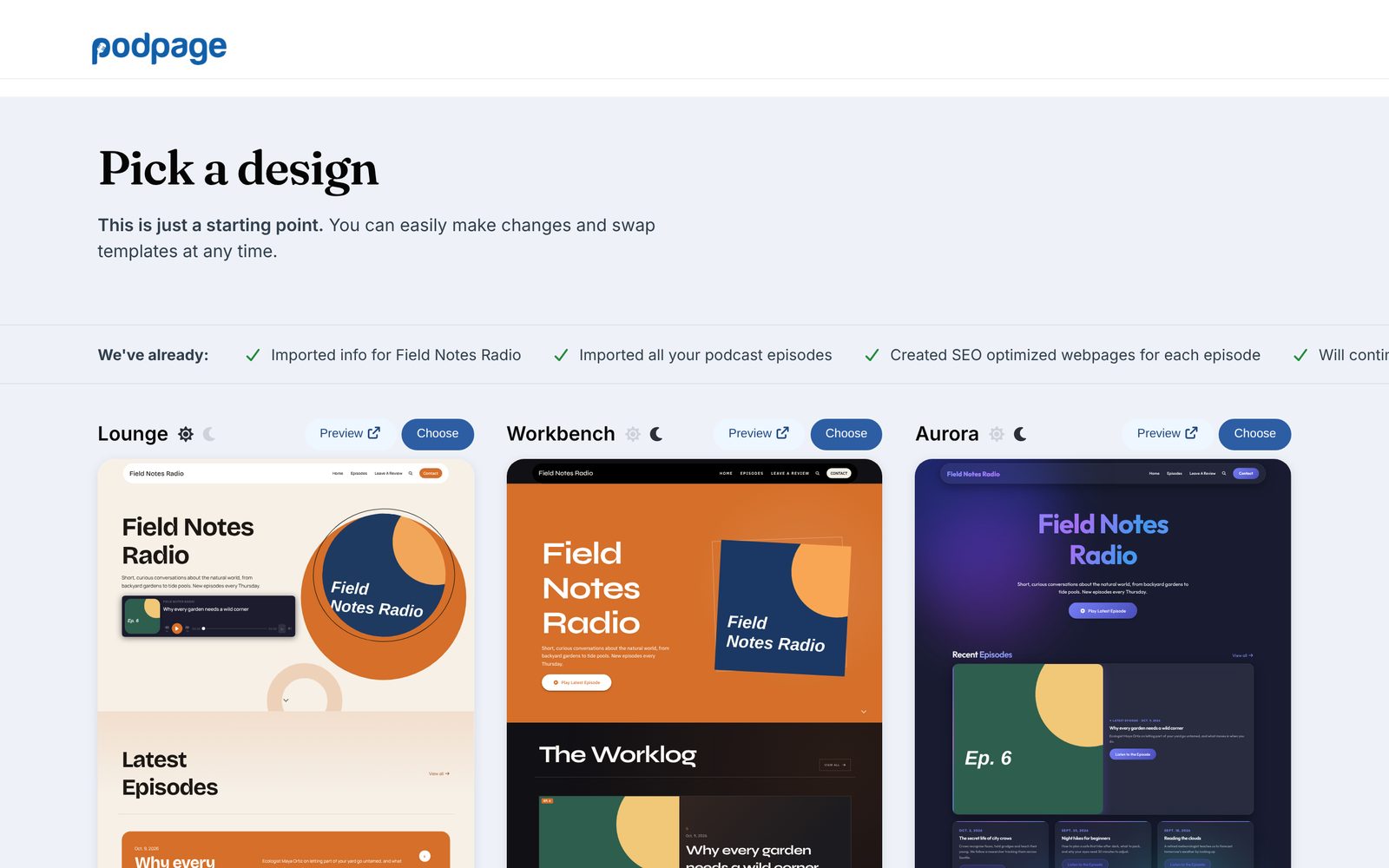
Tip: Don't overthink it. You can change your template, colors and fonts at any time.
Step 3Walk through the setup steps
The Say hi to your new website! screen lists everything Podpage has already done for you: imported your episodes, created a web page for each episode, set up review imports and player links, scheduled automatic updates, and added a contact form and sitemap.
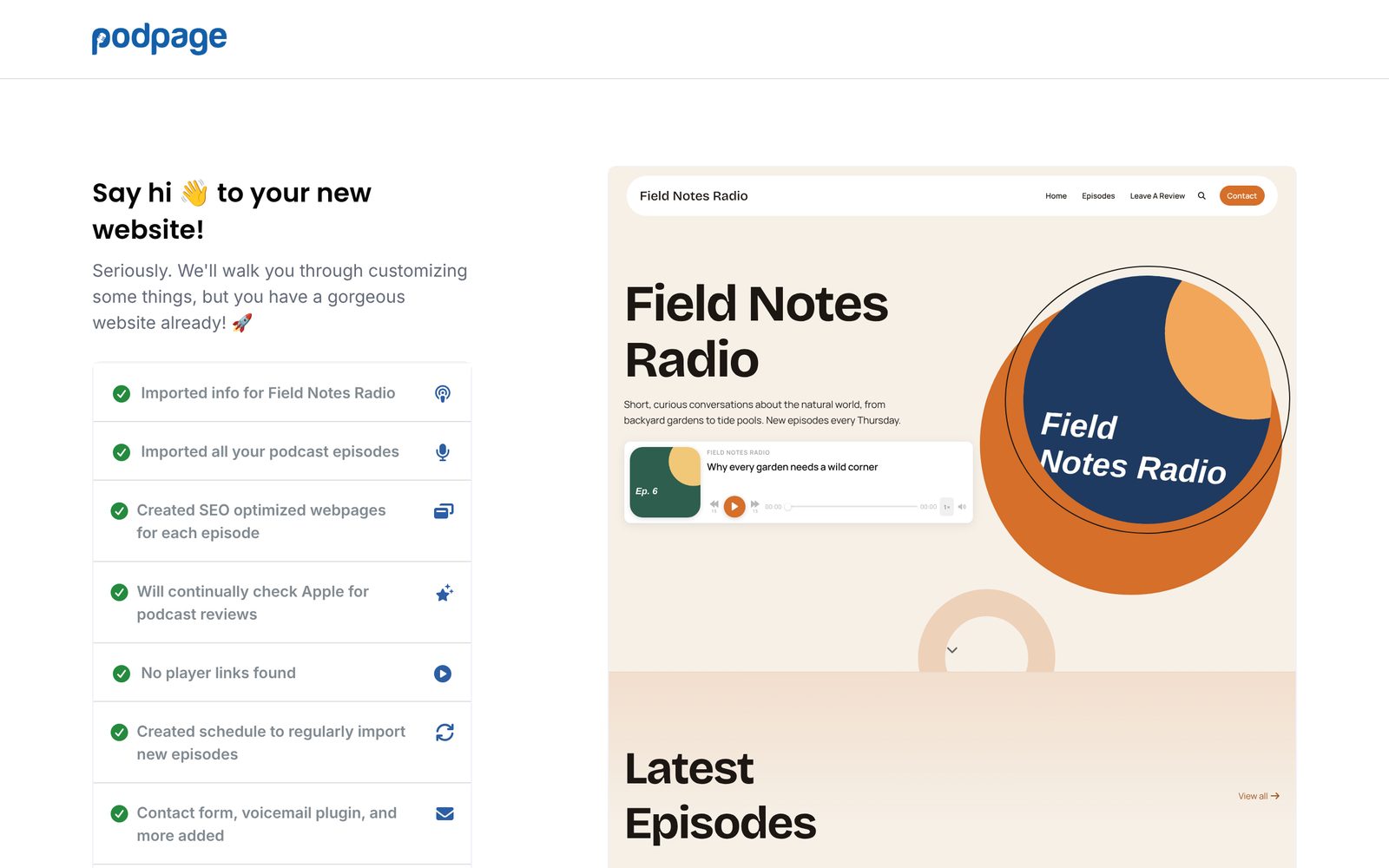
- Click Start Customizing.
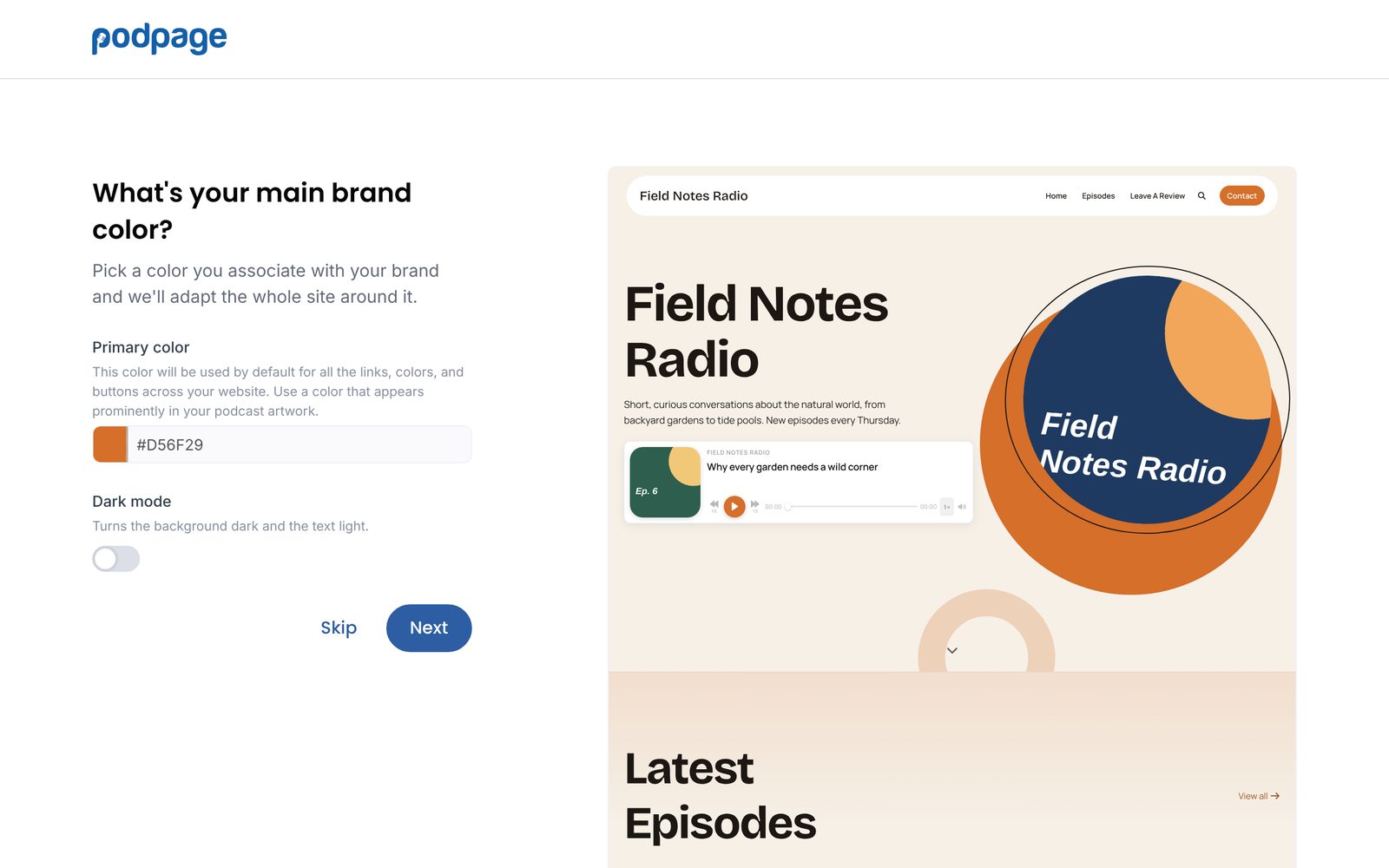
- Pick your Primary color (your main brand color) and choose whether you want Dark mode.
- Click through the remaining screens: episode pages, reviews, listener tools, guest info, and an optional announcement. Click Next to keep the suggested settings, or Skip to move on.
Step 4Create your account
- On the Setup Complete! screen, click Create Account →.
- Enter your email, name and a password, then click Sign Up.
- Click Go to Dashboard.
Your free trial starts now. It lasts 14 days, includes every Basic and Pro feature, and doesn't need a credit card.
Step 5Get to know your dashboard
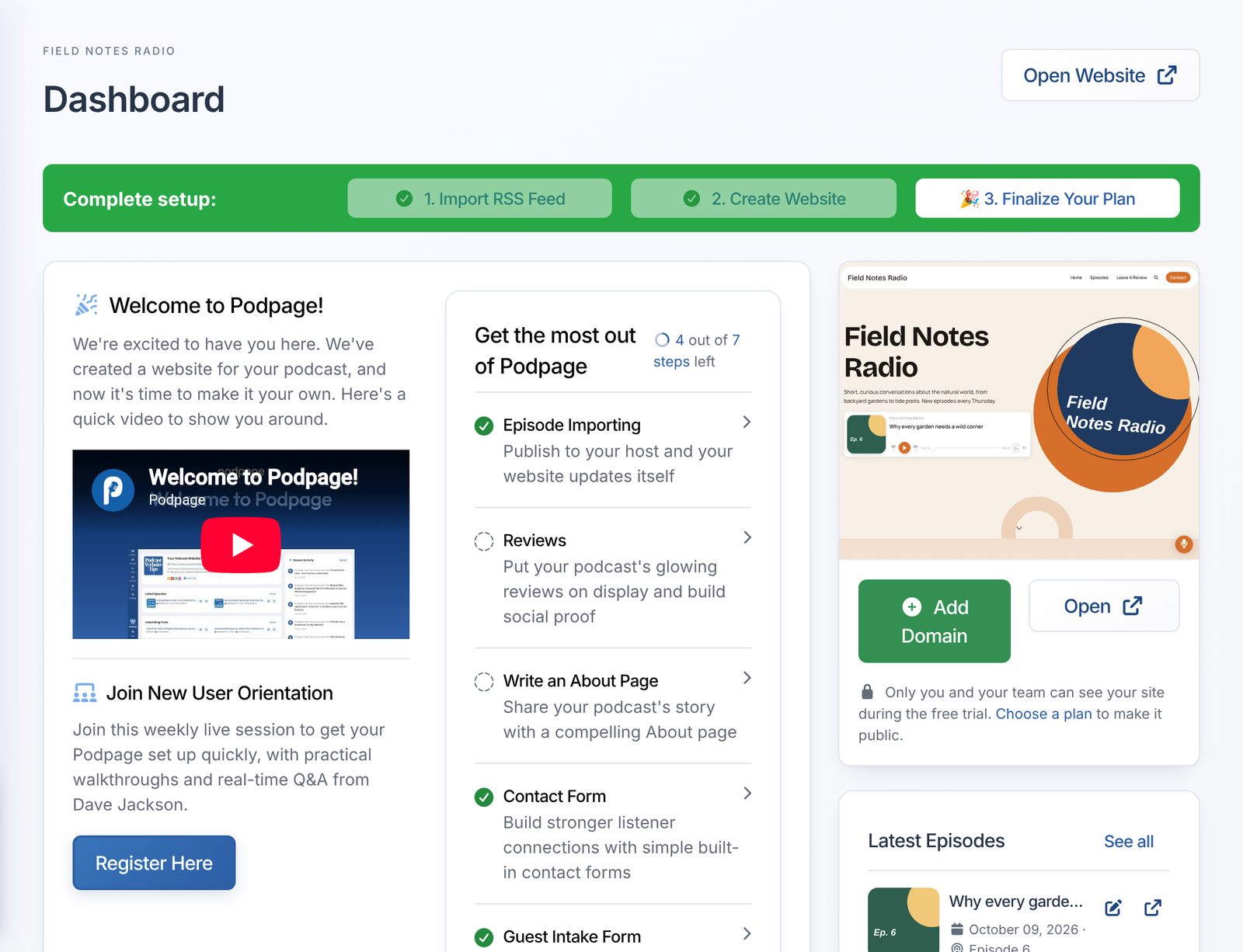
Your dashboard is where you manage everything. A few things to know:
- Open Website (top right of most pages) shows your live site in a new tab.
- The left menu is grouped into Podcast (show info, episodes, reviews), Website (pages, design, and the AI assistant) and Settings.
- Press Ctrl K (or Cmd K on a Mac) to search for any setting.
Step 6Make a few first edits
- Player links: go to Podcast Info → Podcast Player Links and add links to Apple Podcasts, Spotify and anywhere else you're listed. See Adding new player links to your website.
- About page: open Pages → About and tell listeners who you are. The Assistant can write a first draft for you.
- Look and feel: fine-tune colors, fonts and your logo in Design → Edit Design. Our guide How to design your Podpage website walks through it.
Step 7Go live
During your free trial your site is private: only you and your team can see it. Everyone else sees a page that says This site is currently private.
- When you're ready, click Choose a plan on your dashboard, or go to the plans page.
- Subscribe to any plan. Your site goes public immediately. There's no separate publish button.
On a Pro plan or higher, you can subscribe but keep the site hidden until launch day: turn on Coming soon page in Settings → Advanced Settings. Visitors will see a single page with your artwork, description and trailer until you turn it off.
Step 8Share your link
Your site lives at https://www.podpage.com/your-show-name. See What is the link to my website? to find yours or change the end of it.
- Add it as your show's website at your podcast host, so it appears in Apple Podcasts, Spotify and other apps. See Updating your official website link on podcast players.
- Put it in your social profiles and show notes.
New episodes appear automatically
You don't need to do anything when you publish a new episode. Podpage checks your feed regularly (every 30 minutes for shows that published in the last week) and adds new episodes to your site. In a hurry? Click Check Now on your dashboard.
What's next?
- How to connect your custom domain — use your own address, like www.yourshow.com.
- How to design your Podpage website — make the site look like your brand.
- How does the free trial work?