This guide walks you through designing your Podpage website from start to finish. Follow it yourself, or send it to a web designer so they can get up to speed quickly. Most sites look great using only the built-in settings — no code required.
Time needed: about 30 minutes.
Where you'll work: the Design section of your dashboard.
Before you start: gather your assets
Having these ready makes the rest of the guide quick:
- Your brand colors — at minimum, one main color. Hex codes (like
#1A73E8) are easiest. - A logo (optional) — a PNG with a transparent background works best in the navigation bar.
- A banner image (optional) — at least 1500×400 pixels. Avoid images with large text baked in; text in images doesn't resize well on phones (and is a missed SEO opportunity).
- A social sharing image — 1200×630 pixels. This is what people see when your site is shared on social media.
Your podcast cover art comes from your RSS feed automatically. It should be 1400×1400 to 3000×3000 pixels, under 500 KB, as a JPG or PNG. To change it, update it with your podcast host.
Step 1Pick a site template
Templates set your overall layout and style. Starting from one close to what you want saves the most time.
- Go to Design → Change Site Template.
- Preview a few templates and pick the one closest to the look you want.
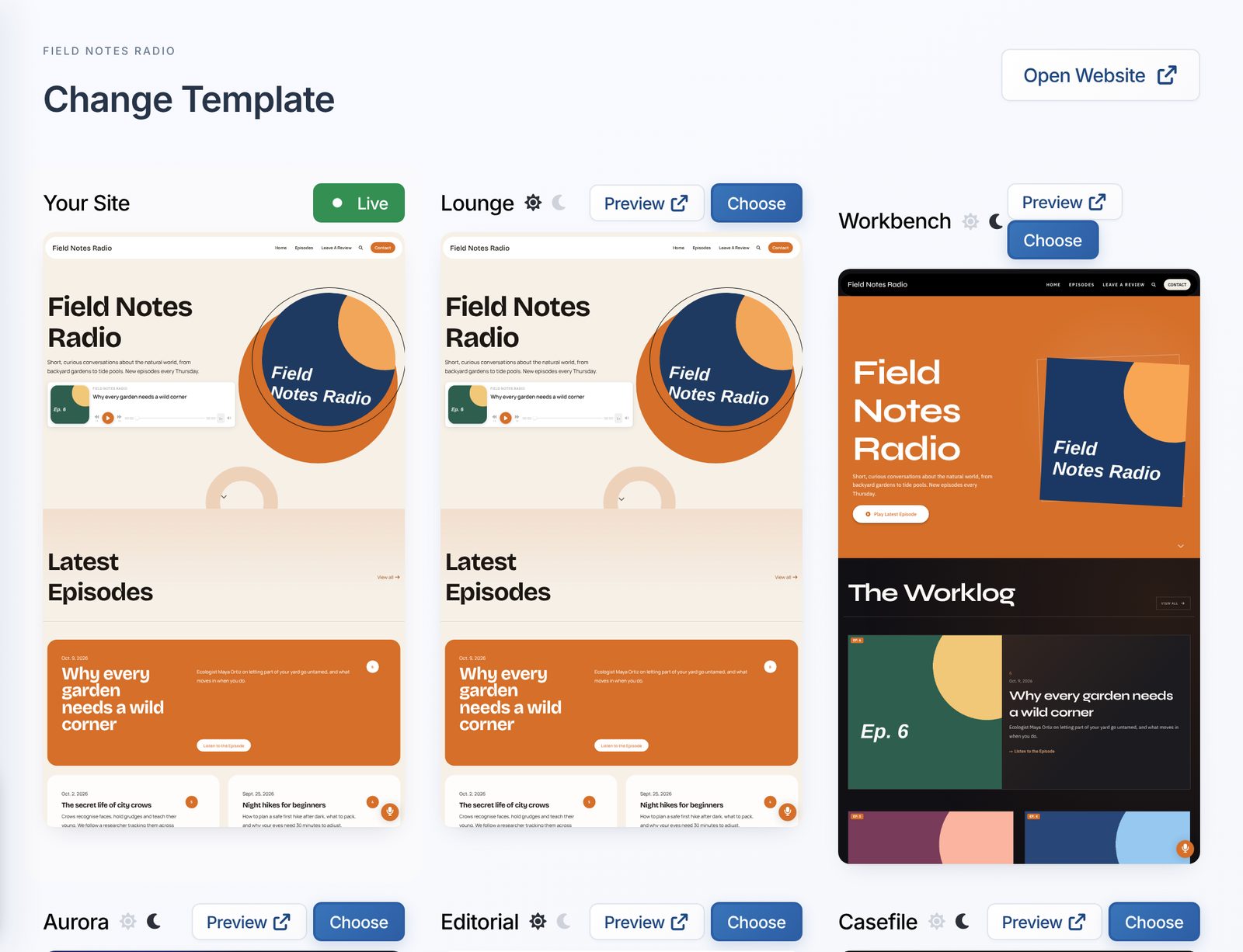
Tip: Pick your template first. Applying a template later can reset design settings you've already changed.
Step 2Set your colors
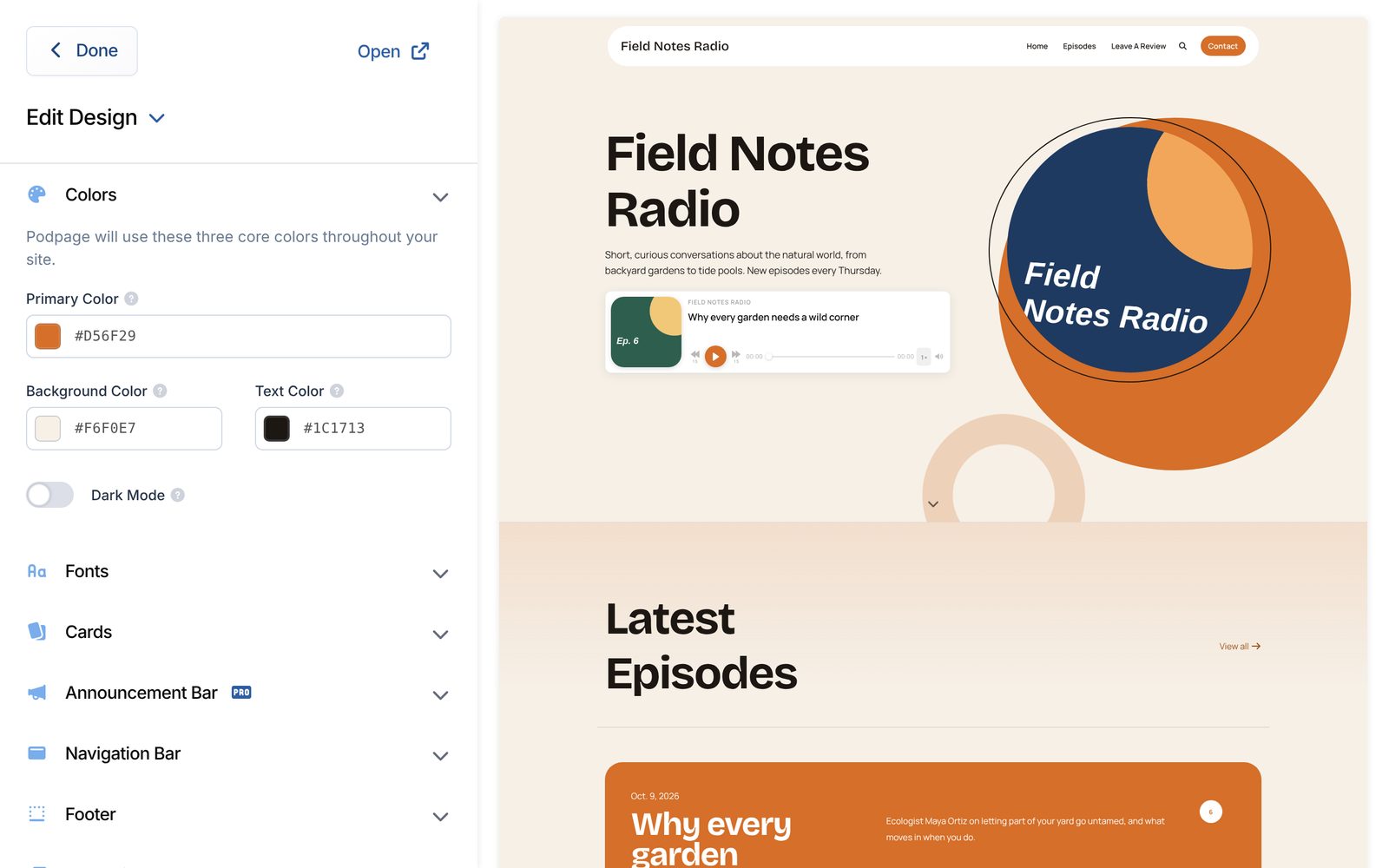
Podpage builds your whole color scheme from three core colors.
- Go to Design → Edit Design and open the Colors panel.
- Set your Primary color — your main brand color. It's used for buttons, links and highlights.
- Set your Background Color and Text Color. Make sure the text is easy to read against the background.
- Prefer a dark look? Turn on Dark mode to make the background dark and the text light.
Step 3Choose your fonts
- In Edit Design, open the Fonts panel.
- Choose a Heading / Title Text Font and a Body Text Font.
Tip: Two fonts is plenty. A distinctive heading font paired with a simple, readable body font works best.
Step 4Set up your navigation bar and logo
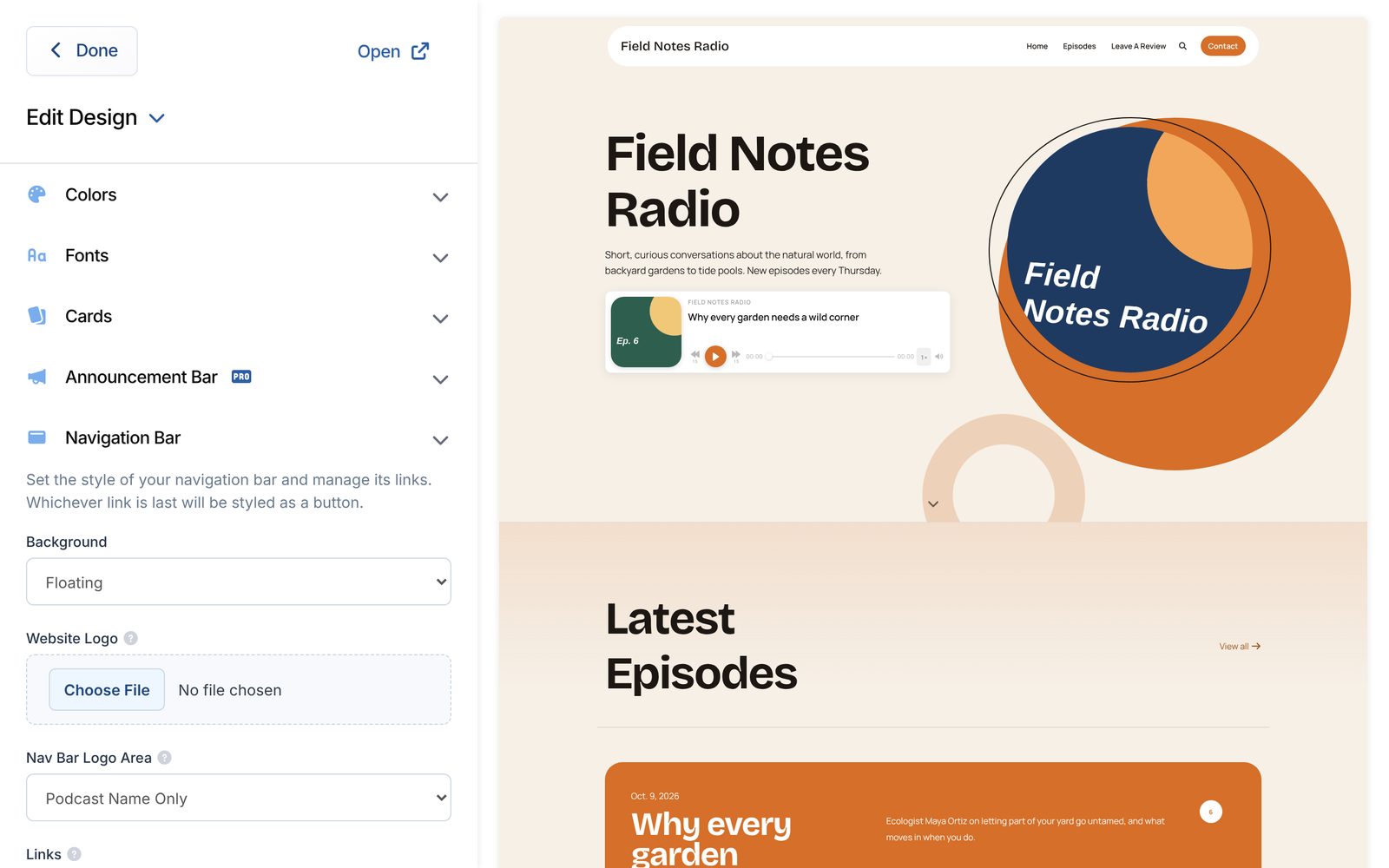
- In Edit Design, open the Navigation Bar panel.
- Upload your Website Logo if you have one. Otherwise your podcast name is shown.
- Set the Navigation Bar Background.
- Use Add Navigation Link to add, remove and reorder the links in your menu.
- Want a call to action, like "Subscribe"? Turn on Make Last Link a Button.
Step 5Finish the footer
- In Edit Design, open the Footer panel.
- Add any Footer Links (for example, a privacy policy or contact page) and your footer and copyright text.
Step 6Set your social sharing image
- Go to Settings → Advanced Settings.
- Under Social sharing, upload your Social Sharing Image (1200×630 pixels).
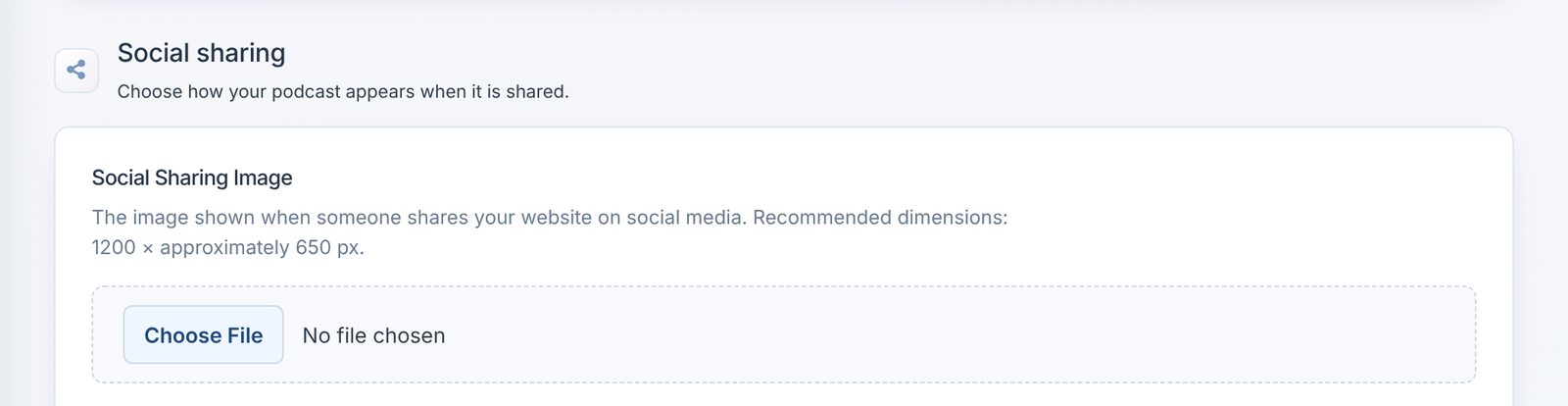
Individual episodes and pages can have their own sharing image too. Set it when you edit that episode or page.
Step 7Fine-tune with Advanced Design (optional)
Edit Design covers the essentials. For full control, open Advanced Design from the link at the bottom of the Edit Design panel list. There you can adjust:
- Layout — page width, section spacing, corner rounding and animations.
- Cards — how your episode cards look.
- Global Banner — the header shown on every page except your homepage.
- Sidebar — what appears in the sidebar on your pages.
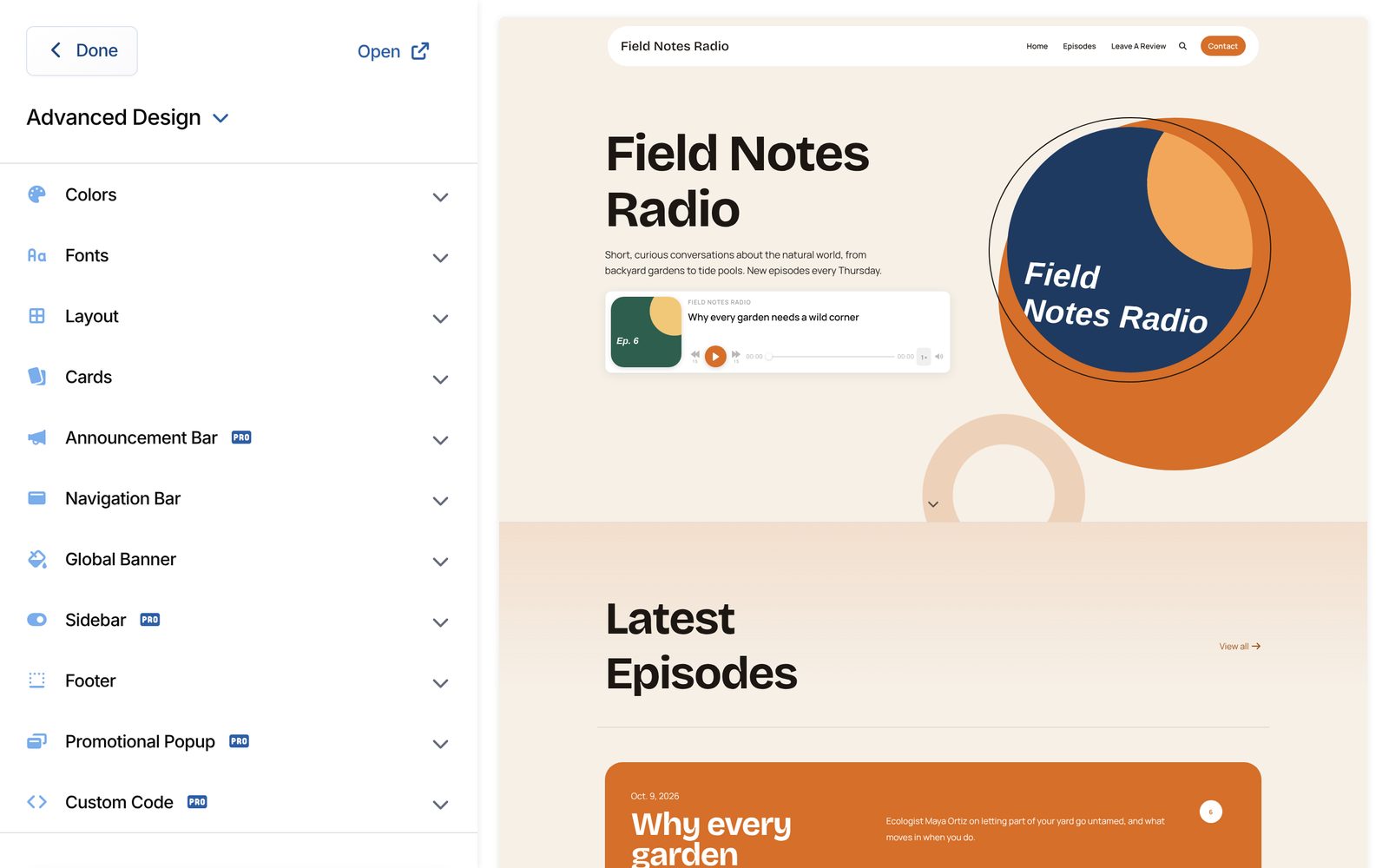
Most sites never need these, so only change what you have a reason to.
Step 8Custom code (for designers)
If a designer wants to go beyond the built-in settings, the Custom Code panel in Advanced Design accepts custom CSS, JavaScript and HEAD tag code.
Use built-in settings first. Code that hardcodes colors or fonts overrides your settings, so changing them in the dashboard later won't do anything. If your designer adds code, ask them to keep a note of what they added and why.
Check your work
- View your site on your phone as well as your computer.
- Click through your navigation links to make sure they all work.
- Share your homepage link in a private message to yourself to preview the social sharing image.
Prefer video?
See Working with a web designer on your Podpage website for video walkthroughs of each of these steps.